
Application to Distribute in Kind
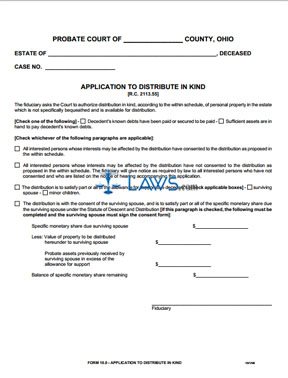
INSTRUCTIONS: OHIO APPLICATION TO DISTRIBUTE IN KIND (Form 10.0)
The document discussed in this article is used to request a distribution in kind in the administration of an Ohio estate. This document can be obtained from the website maintained by the Ohio Supreme Court.
Ohio Application To Distribute In Kind 10.0 Step 1: Enter the name of the county in which the administering probate court is located on the first blank line.
Ohio Application To Distribute In Kind 10.0 Step 2: Enter the name of the decedent whose estate is being administered on the second blank line.
Ohio Application To Distribute In Kind 10.0 Step 3: Enter the case number assigned to the estate on the third blank line.
Ohio Application To Distribute In Kind 10.0 Step 4: Check the first statement if the decedent's known debts have been paid or secured to be paid.
Ohio Application To Distribute In Kind 10.0 Step 5: Check the second statement if sufficient assets are in hand to pay the decedent's known debts.
Ohio Application To Distribute In Kind 10.0 Step 6: Check the third statement if all interested persons whose interests may be affected by distribution have consented to the distribution as proposed in the schedule contained in this document.
Ohio Application To Distribute In Kind 10.0 Step 7: Check the fourth statement if all interested persons whose interests may be affected by distribution have not consented to the proposed distribution. If this is the case, you are also stating you will give notice to all interested persons who have not consented and who are listed on the notice accompanying this application.
Ohio Application To Distribute In Kind 10.0 Step 8: Check any applicable statements on the remainder of the first page. Enter your signature at the bottom of the page.
Ohio Application To Distribute In Kind 10.0 Step 9: On the second page, the signature of any consenting parties should be entered where indicated.
Ohio Application To Distribute In Kind 10.0 Step 10: Where indicated, complete the schedule of the property to be distributed in kind.
Ohio Application To Distribute In Kind 10.0 Step 11: Submit the form to the court for completion. The probate judge will review the application for approval and complete the bottom of the second page.
Response to Petition Post Appointment and Order
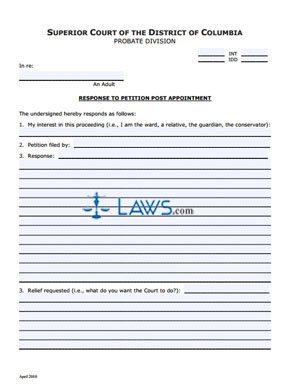
INSTRUCTIONS: WASHINGTON D.C. RESPONSE TO PETITION POST APPOINTMENT
The form discussed in this article is used to request relief from the court in response to a petition filed after the appointment of a conservator or guardian in a Washington D.C. probate case. This document can be obtained by the website maintained by the District of Columbia Courts system.
Washington D.C. Response To Petition Post Appointment Step 1: On the first blank line of the form, enter the name of the adult who is the subject of the case.
Washington D.C. Response To Petition Post Appointment Step 2: On line 1, explain your interest in this proceeding.
Washington D.C. Response To Petition Post Appointment Step 3: On line 2, enter the name of the person who filed the petition.
Washington D.C. Response To Petition Post Appointment Step 4: On line 3, enter your response.
Washington D.C. Response To Petition Post Appointment Step 5: On the continuation of line 3, describe the relief you are requesting from the court.
Washington D.C. Response To Petition Post Appointment Step 6: Check the first statement on the second page if you are requesting an oral hearing.
Washington D.C. Response To Petition Post Appointment Step 7: Check the second statement if you are not requesting an oral hearing.
Washington D.C. Response To Petition Post Appointment Step 8: Your attorney should provide their signature on the next blank line.
Washington D.C. Response To Petition Post Appointment Step 9: On the next blank line, type the name of your attorney.
Washington D.C. Response To Petition Post Appointment Step 10: On the next two blank lines, enter the address of your attorney.
Washington D.C. Response To Petition Post Appointment Step 11: On the next blank line, enter the telephone number of your attorney.
Washington D.C. Response To Petition Post Appointment Step 12: Enter the Unified Bar number of your attorney on the next blank line. Providing their email address on the next blank line is optional.
Washington D.C. Response To Petition Post Appointment Step 13: On the next two blank lines, enter your signature and type your name.
Washington D.C. Response To Petition Post Appointment Step 14: Enter your address on the next two blank lines. Enter your telephone number on the last blank line.